Set up
Follow these steps to set up the Orbital X Tracker bot and start monitoring X accounts directly in your Discord server.
1. Add Orbital to Your Server
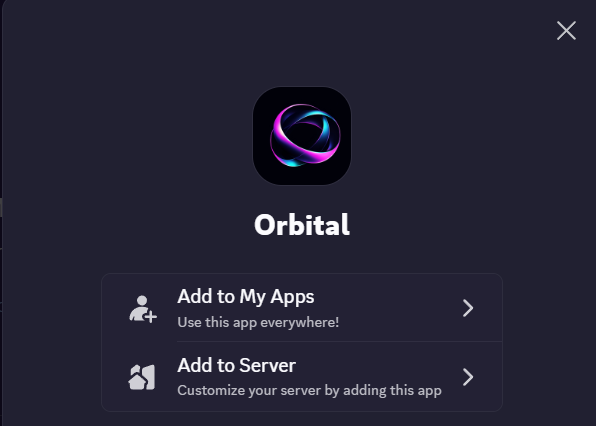
Click this invite link to add the bot: https://discord.com/oauth2/authorize?client_id=1432769101763182735 Choose either:
- Add to Server → to install it in a specific server
- Add to My Apps → to use Orbital across multiple servers
2. Create a Webhook in Your Server
Orbital uses Discord webhooks to send real-time tweet alerts. To create one:
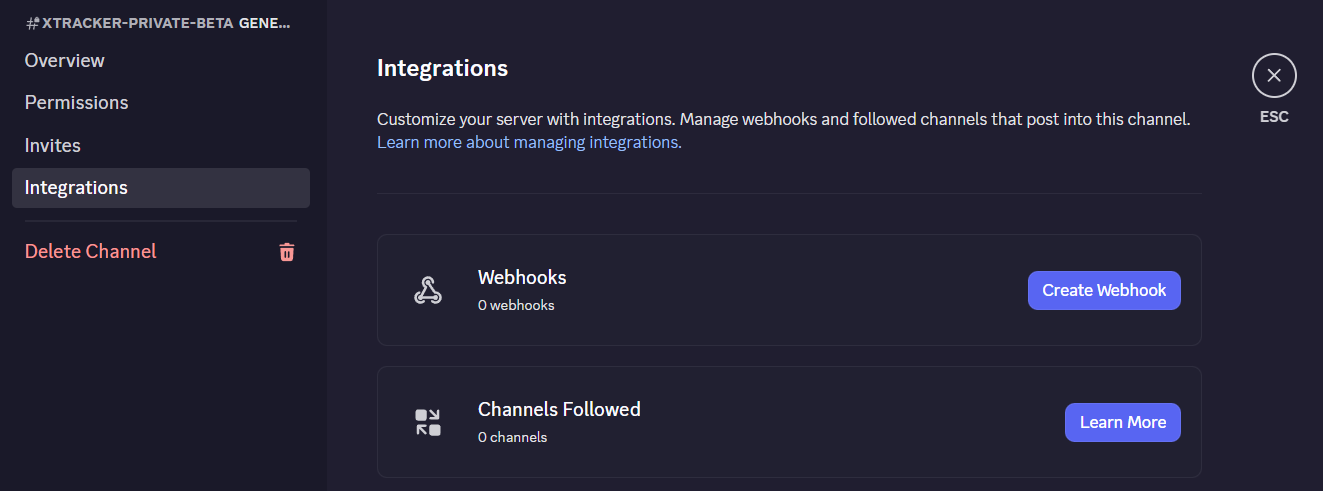
- Go to your desired channel’s Settings → Integrations
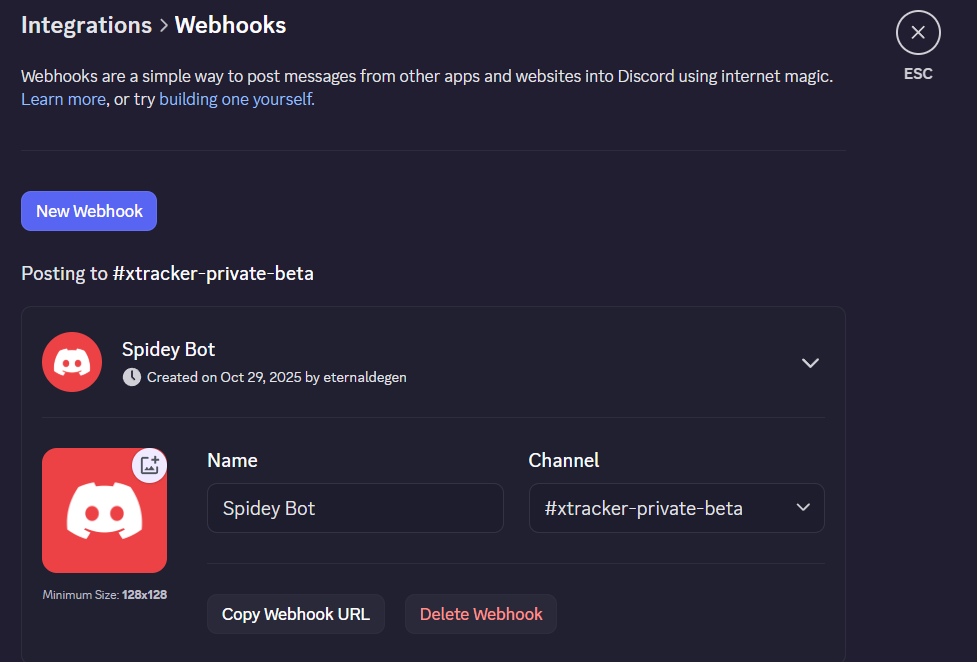
- Click Create Webhook
- Name it (e.g. “XTracker”) and select the correct channel
- Click Copy Webhook URL, you’ll need this next
3. Open Orbital Commands
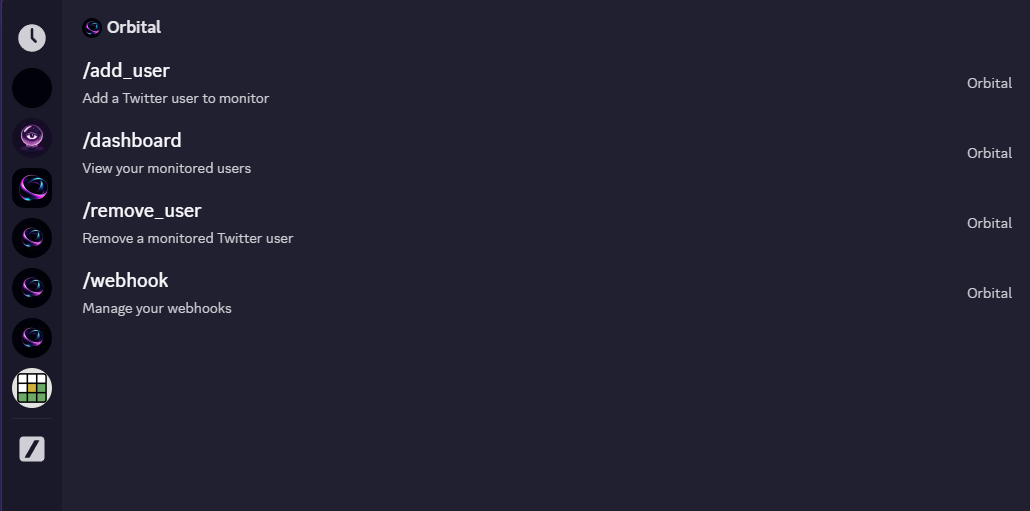
Once the bot is added, type / in any channel and scroll until you see Orbital commands: /add_user, /dashboard, /remove_user, /webhook
4. Add Your Webhook to Orbital
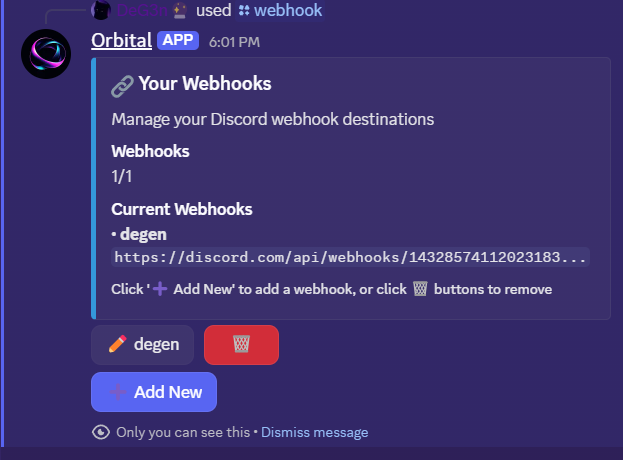
Run the command: /webhook
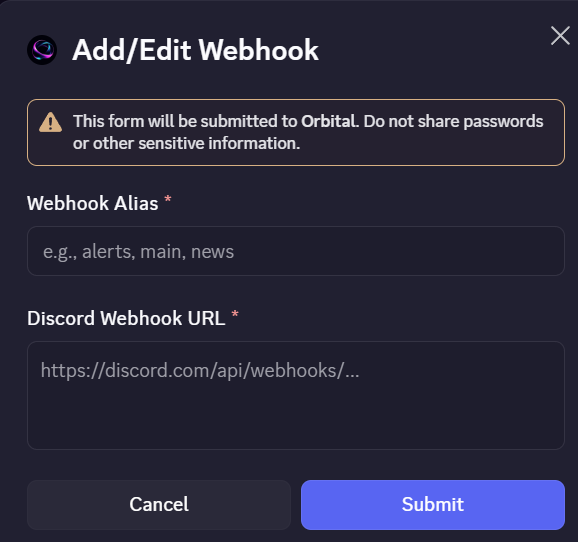
- Click Add New, then fill out the form:
- Webhook Alias: a name like "main" or "firstlist"
- Discord Webhook URL: paste the webhook you copied earlier
- Click Submit
5. Start Tracking Twitter Users
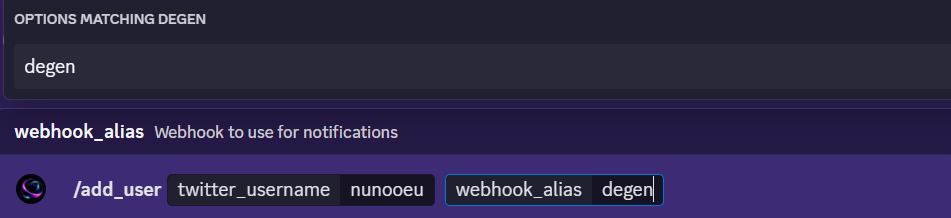
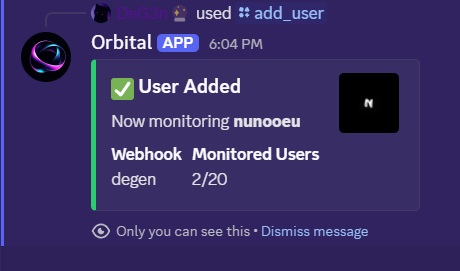
- Use: /add_user
- Then fill: twitter_username → the account to track and webhook_alias → choose your webhook (e.g. "main")
You’ll see confirmation once added
6. View Your Dashboard
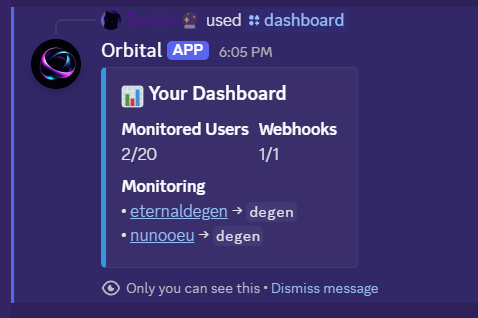
Use: /dashboard
to view all monitored users and connected webhooks
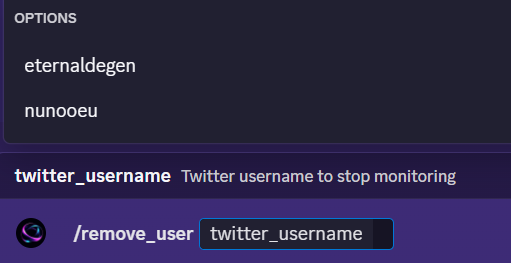
7. Remove a User (Optional)
To stop tracking any account, use the command:
/remove_user
and pick from your list